Getting your phone ready
Everything you need to do before Halcy-Con 3, and what to do if a check fails. Takes about five minutes.
The Nav lives at halcy-con.com/nav — that address is the starting point for every step below.
iPhone: copy or type that address into Safari yourself — don't get there by tapping a link. A tapped link can open in the wrong browser, and only Safari can install the Nav. (Android: tapping links is fine.)
Do this on the phone you are actually bringing to the event.
The short version
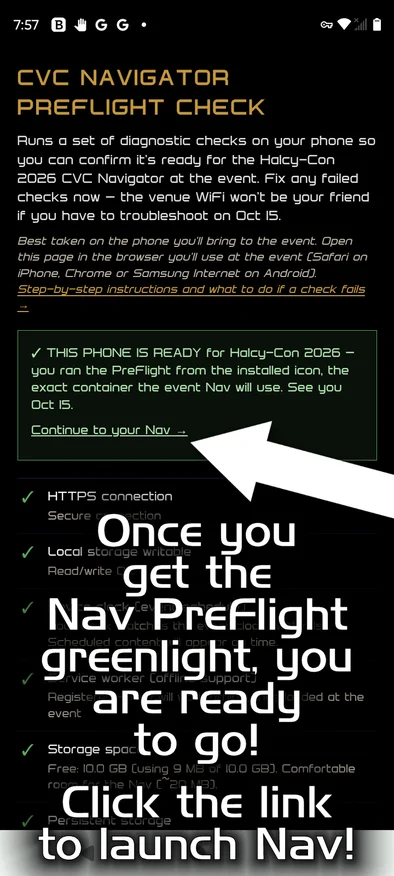
Copy or type halcy-con.com/nav into Safari yourself — on an iPhone it has to be Safari, because Safari is the only browser that can create the Home Screen app, and a tapped link can open somewhere else. Add the CVC Nav to your Home Screen, then open it again from that new icon. You are finished when you see the green THIS PHONE IS READY.
Open the PreFlight Check in your usual browser — Chrome or Samsung Internet. Add the CVC Nav to your Home Screen, then open it again from that new icon. You are finished when you see the green THIS PHONE IS READY.
Three things that matter most
- Install it. Adding the Nav to your Home Screen is what lets your phone keep the event content reliably. On iPhone this only works from Safari.
- Use a real browser. If you opened this from a link inside Instagram, Messenger, or another app, tap the open in browser option first. Those built-in browsers often cannot install anything.
- The PreFlight Check is the authority. Not your phone's age, not what someone else's phone did. If it shows green, you are ready.
Do this now
Pick your phone — each walkthrough runs start to finish with a picture for every tap: iPhone steps ↓ · Android steps ↓
iPhone — start to finish
1. Open the PreFlight Check in Safari
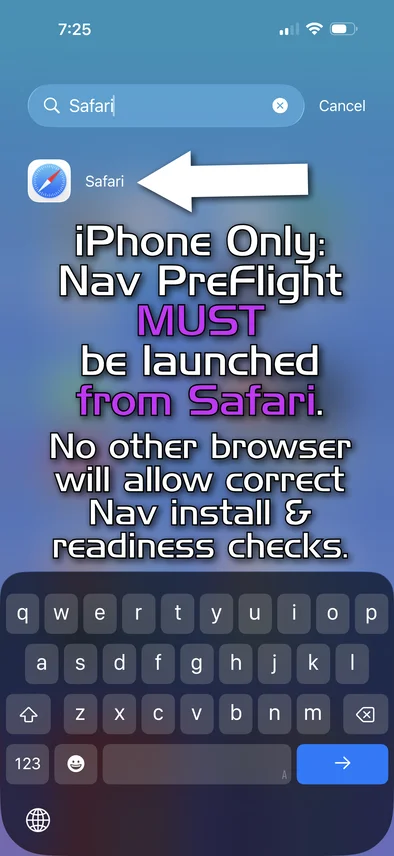
On an iPhone it has to be Safari — it is the only browser that can create the Home Screen app. Not sure where Safari is? Swipe down on the middle of your Home Screen and type Safari — it appears right under the search bar. Then type or paste halcy-con.com/nav into Safari's address bar yourself — don't tap a link to get there. A link tapped in mail or another app can open in the wrong browser, and the install only works from Safari.
2. Tap "Run the PreFlight Check"
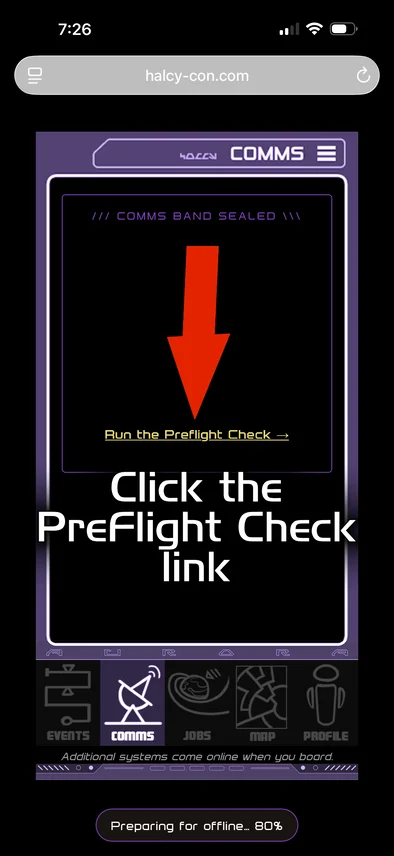
After a short startup screen you'll land on a Comms page reading COMMS BAND SEALED — that's correct before the event. Tap Run the PreFlight Check →; the checks start automatically. A Preparing for offline… counter may run at the bottom — that's the offline download working in the background; no need to wait for it.
3. Add it to your Home Screen
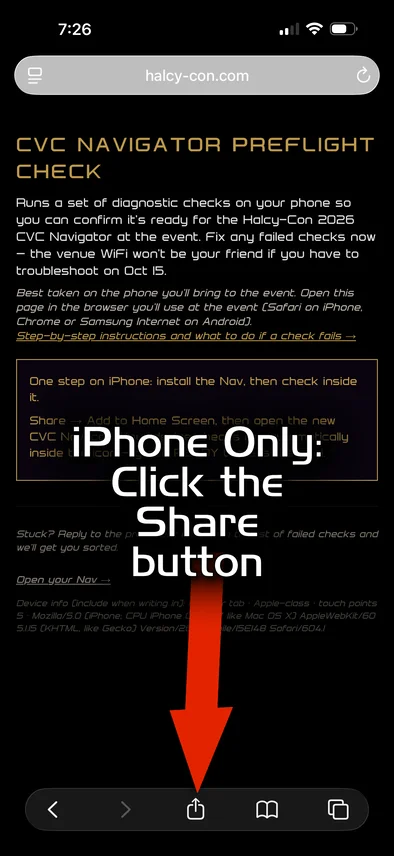
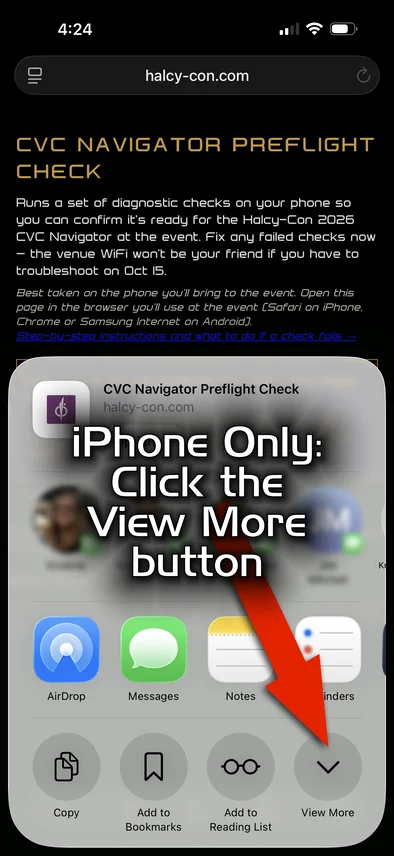
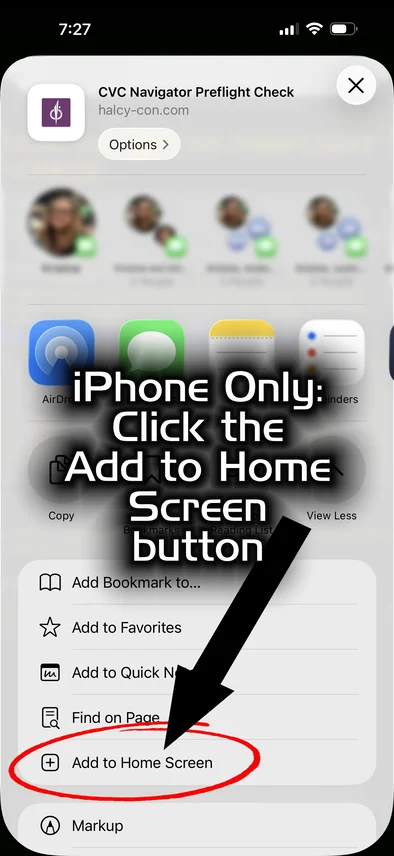
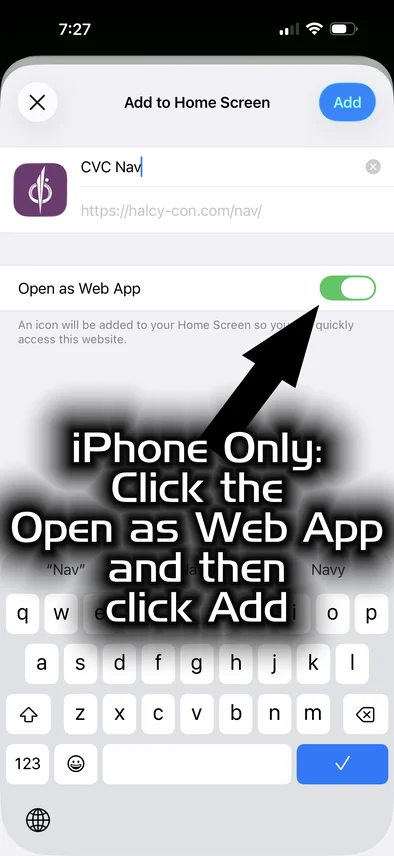
Tap the Share button, then View More, then Add to Home Screen, then Add. You should end up with a CVC Nav icon on your Home Screen.
4. Open it again from the new icon
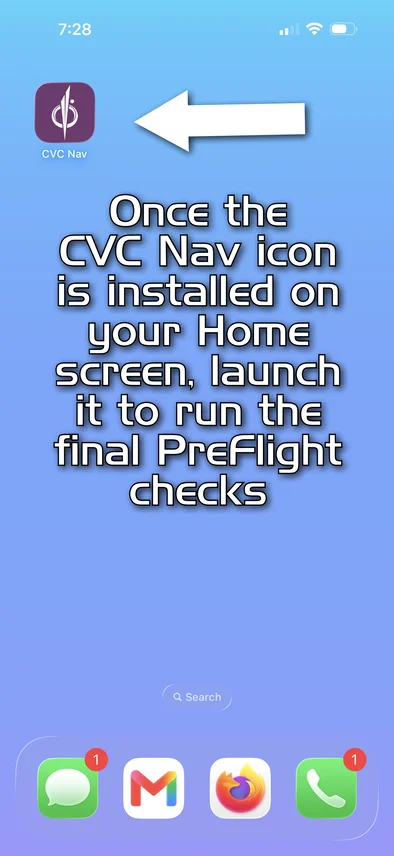
This part is easy to skip and it is the part that counts. Close Safari, tap the CVC Nav icon, and tap Run the PreFlight Check → once more — the checks run again, in the place the event will actually use.
5. Look for the green result
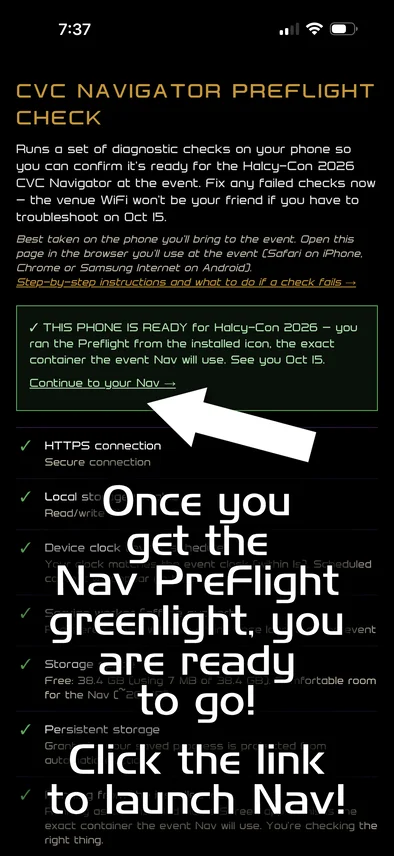
You are done when the top of the page reads THIS PHONE IS READY.
If it says Almost there in amber instead, that is not a fault. It means every check a browser tab can run has passed, and the last one can only be answered from the installed icon — go back to step 4 and open the icon rather than the tab.
Android — start to finish
1. Open the PreFlight Check
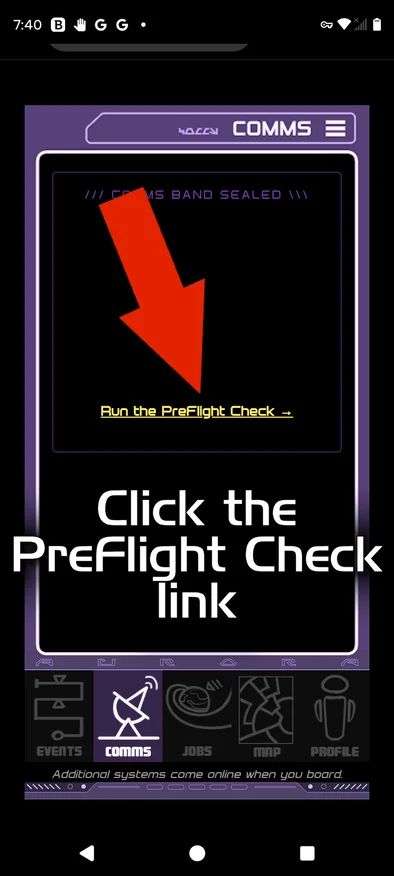
In Chrome or Samsung Internet, go to halcy-con.com/nav. After a short startup screen you'll land on a Comms page reading COMMS BAND SEALED — that's correct before the event. Tap Run the PreFlight Check →; the checks start automatically. A Preparing for offline… counter may run at the bottom — that's the offline download working in the background; no need to wait for it.
2. Install it
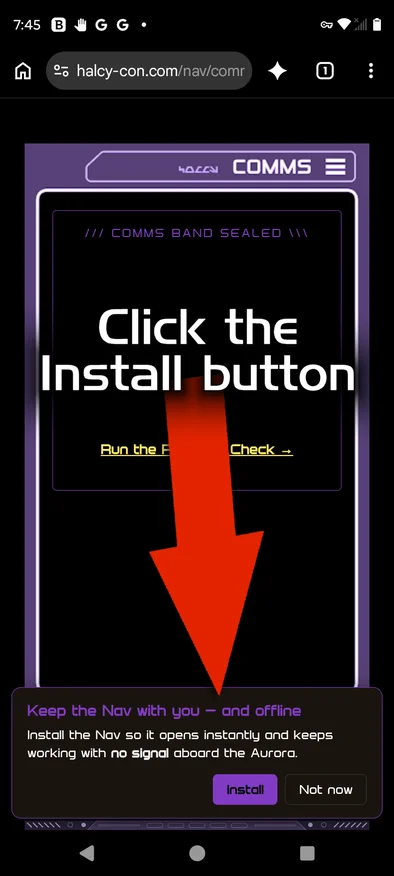
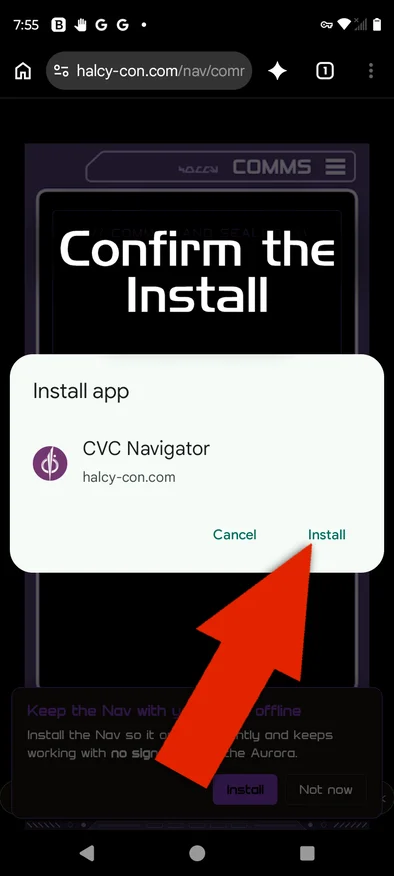
Tap Install on the Keep the Nav with you banner, then Install again on the confirmation. No banner? Tap the ⋮ menu, then Install app. You should end up with a CVC Nav icon on your home screen.
3. Open it again from the new icon
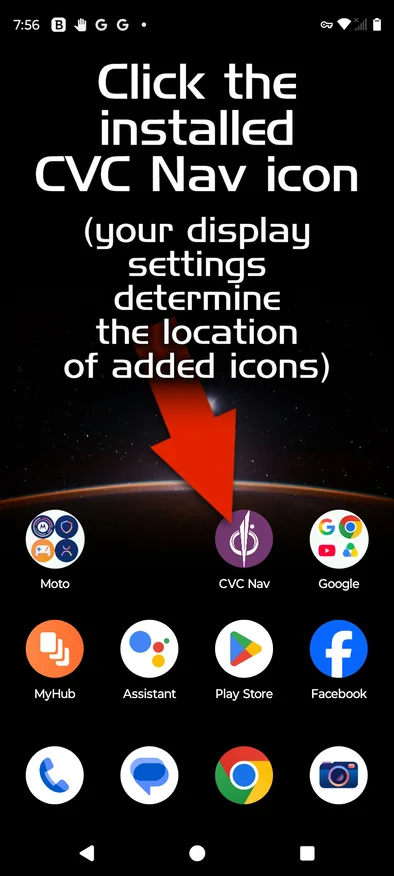
This part is easy to skip and it is the part that counts. Close the browser, tap the CVC Nav icon, and tap Run the PreFlight Check → once more — the checks run again, in the place the event will actually use.
4. Look for the green result
You are done when the top of the page reads THIS PHONE IS READY. If it says Almost there in amber instead, you're still in a browser tab — go back to step 3 and open the icon.
If something fails
A red ✗ needs fixing. An amber ! marked optional will not stop you using the Nav. A ↗ marked final step means open the app from your Home Screen icon.
- Running from the installed icon
- You are in a browser tab. Add the Nav to your Home Screen (the install step in your walkthrough above) and open it from there. On iPhone this must be done in Safari.
- iOS version
- Your iPhone needs iOS 15.4 or newer. Settings → General → Software Update. If your phone cannot update that far, bring a different phone if you can, and tell us either way.
- Device clock
- Your clock is off by enough to affect the event schedule. Turn on automatic time: iPhone → Settings → General → Date & Time → Set Automatically. Android → Settings → System → Date & time → Set time automatically.
- Local storage writable
- Almost always private/incognito browsing, or blocked cookies. Open the page in a normal window, and allow cookies and site data for this site.
- HTTPS connection
- You reached the page over a plain connection. Use https://halcy-con.com/nav/ — the address must start with https://.
- Mobile viewport · Touch input
- The Nav is built for phones. If you are on a desktop or a tablet in desktop mode, switch to the phone you will bring.
- Display features
- Your browser is too old for some of the puzzle screens. Update the browser — or on Android, install a current Chrome or Samsung Internet.
- Storage space · Offline cache capacity
- Your phone is short on room for the offline download. Free up a little space and run the check again.
- Persistent storage
- Optional. It is granted more readily once the Nav is installed to your Home Screen, so do step 2 first and re-check.
- Service worker
- This is what makes the Nav work without a signal. If it fails, you are usually in private browsing or have site data blocked — same fix as local storage.
- Custom fonts · Color rendering · Dark-mode compatibility
- Optional, appearance only. Some Android phones force dark mode on every site; the Nav will still work correctly.
Phones that work
| Minimum | Best | |
|---|---|---|
| iPhone | iOS 15.4+, Safari | iOS 16+, Safari, added to Home Screen |
| Android | Android 9+, Chrome 88+ / Samsung Internet 15+ / Firefox 89+ | Android 10+, current Chrome or Samsung Internet, installed |
On iPhone every browser uses the same engine underneath, so Chrome or Firefox on iOS will pass the checks — but only Safari can add the working Home Screen app, so use Safari for the install.
Still stuck?
Common questions are answered on the Halcy-Con FAQ.
Tell us what the PreFlight Check showed — which lines were red, and your phone model and OS version. That is enough for us to sort it out with you before the event, which is the whole point of doing this now.